Ollama Not Using GPU on Windows? Fix 100% CPU
Ollama stuck at 100% CPU on Windows? Read server.log, update the driver, clear CUDA_VISIBLE_DEVICES and get AMD or Intel GPUs working via Vulkan.
Updated: 15 November 2026. Checked against Ollama v0.40.16 (released 9 November 2026), Ollama's hardware support page, troubleshooting guide, Windows notes and FAQ, plus recent bug reports on Ollama's GitHub.
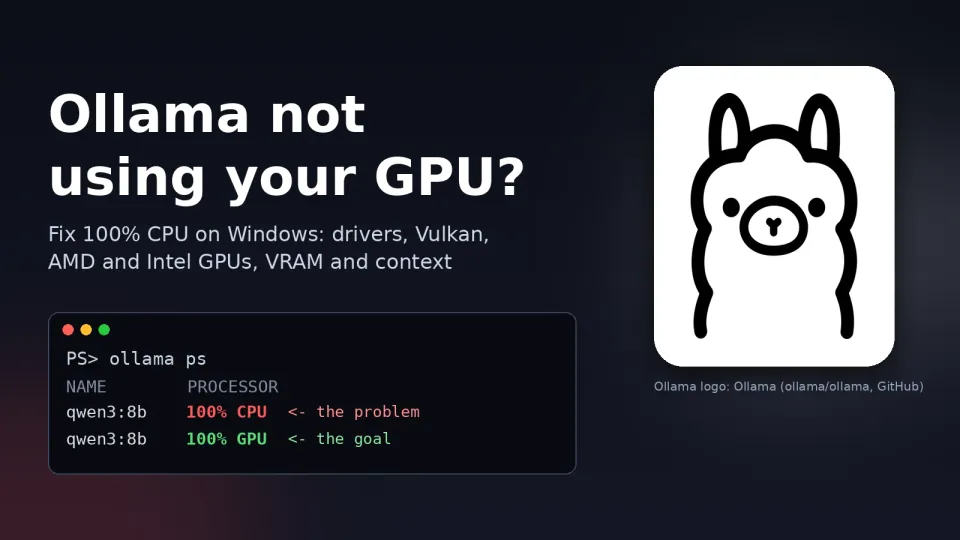
Short answer: when ollama ps says 100% CPU, Ollama didn't find a GPU it could use when the server started, and it quietly fell back to the processor. On Windows, the usual causes are an old graphics driver, an environment variable that hides the GPU, an AMD or Intel card that has to go through Vulkan instead of ROCm, or an update that left a broken file behind. The server log tells you which one it is in about a minute. Read it first, then jump to the step that matches.
If you see a split like 40%/60% CPU/GPU instead, that's a different problem. Your GPU works fine. The model plus its context just doesn't fit in VRAM, so part of it spilled into system RAM. Skip to Step 8 for that one.
A quick honesty note: I haven't broken my own setup to film every one of these, so I won't pretend I watched each fix work. Everything below comes from Ollama's own docs and source code, Nvidia's docs, and what Ollama's developers and users worked out in GitHub issues over the last two months. When something is a community workaround rather than an official fix, I'll say so.
Jump to:
- Quick checker: what Ollama is telling you
- Step 1: Confirm the model is really on the CPU
- Step 2: Read the server log
- Step 3: Update your graphics driver
- Step 4: Remove environment variables that hide the GPU
- Step 5: AMD Radeon: let Vulkan do the work
- Step 6: Intel Arc and integrated graphics
- Step 7: Repair a broken Ollama install
- Step 8: Fix a CPU/GPU split
- Running Ollama in WSL2 or Docker
- FAQ
Quick checker: what Ollama is telling you
Match what you see to the row, then go straight to that step. Most people only need one.
| What you see | What it usually means | Go to |
|---|---|---|
100% CPU and total_vram="0 B" in server.log | Ollama found no usable GPU at startup | Steps 3, 4 and 7 |
| Nvidia card, error mentioning "PTX was compiled with an unsupported toolchain" | Your driver is older than what Ollama's CUDA build needs | Step 3 |
| It worked yesterday, broke after Ollama updated itself | A GPU library file may not have been replaced properly | Step 7 |
| Radeon RX 9000 or RX 6000 card on Windows | These cards aren't on Ollama's Windows ROCm list and need Vulkan | Step 5 |
| "dropping integrated GPU; to enable, set OLLAMA_IGPU_ENABLE=1" | Ollama skipped your integrated graphics on purpose | Step 6 |
| You once set CUDA_VISIBLE_DEVICES, OLLAMA_LLM_LIBRARY or OLLAMA_GPU_OVERHEAD | That setting is hiding the GPU or reserving its memory | Step 4 |
A split like 40%/60% CPU/GPU | The GPU works, but the model and context are too big for VRAM | Step 8 |
Step 1: Confirm the model is really on the CPU
Ollama only shows a model in ollama ps while it's loaded, so start one first. Use a small model so size can't be the reason:
ollama run qwen3:8b "hello"
ollama ps
Look at the PROCESSOR column. Ollama's FAQ spells out what it means: 100% GPU is the whole model in video memory, 100% CPU is the whole thing in system RAM, and a mixed value like 48%/52% CPU/GPU means it's split across both.
Two things to rule out before you go further. First, cloud models (the ones with -cloud in the name) run on Ollama's servers, not your GPU, so test with a local model. Second, if you use a chat app like Open WebUI, make sure it talks to the same Ollama on localhost:11434 that you're checking. A second copy running in WSL or Docker is a very common surprise.
Task Manager can mislead you here. Its GPU graph shows 3D work by default, and Ollama's work is compute, so the graph can sit near zero even when the model is on the GPU. If one of the small graphs offers "Cuda" or "Compute" in its dropdown, switch to that. Otherwise, trust ollama ps and watch the Dedicated GPU memory line jump when the model loads.
Step 2: Read the server log
This is the step people skip, and it's the one that saves the most time. Press Win + R, type explorer %LOCALAPPDATA%\Ollama and open server.log. That's the newest one; older runs are kept as server-1.log, server-2.log and so on.
Near the top, Ollama logs what it found during GPU discovery. These are the lines worth searching for:
msg="inference compute" ... library=CUDA(orROCm, orVulkan) followed by your card's name. Good news. Ollama sees the GPU.inference compute id=cpu library=cpuandtotal_vram="0 B". No GPU was found. Work through Steps 3, 4 and 7.dropping integrated GPU; to enable, set OLLAMA_IGPU_ENABLE=1. That message comes straight from Ollama's GPU discovery code. See Step 6.- Anything containing
CUDA error. The card was found, but loading failed. A driver update (Step 3) fixes most of these.
Want more detail? Ollama's troubleshooting guide says to quit the app from the tray first, then start it from PowerShell with debug logging on:
$env:OLLAMA_DEBUG="1"
& "ollama app.exe"
Load a model again and the log will spell out each discovery step.
Step 3: Update your graphics driver
Ollama's troubleshooting page puts it bluntly: GPU discovery sometimes fails, and "in general, running the latest driver will yield the best results." Here are the documented minimums:
- Nvidia: Ollama's Windows notes ask for driver 551.61 or newer. Cards with compute capability 5.0 to 6.2, which covers the GTX 900 and GTX 10 series, need driver 570 or newer. Anything older than compute capability 5.0 (a GT 730, say) isn't supported at all. Get the driver from nvidia.com/drivers or the Nvidia app rather than waiting for Windows Update.
- AMD: install the current Adrenalin driver from AMD's site. ROCm on Windows needs a ROCm 7 / HIP 7-capable driver, and Vulkan needs a normal Radeon driver with Vulkan support, which current ones have.
- Intel Arc and Iris Xe: install the latest Intel graphics driver from Intel's site. Laptop owners can also check the maker's support page.
Here's a recent example of why this matters. After Ollama 0.40.13 came out, a GTX 1080 owner got CUDA error: the provided PTX was compiled with an unsupported toolchain and the model wouldn't load. Updating to Nvidia driver 582.78 fixed it, and the GitHub issue was closed. That error is basically a "your driver is too old for this build" message.
To check your Nvidia driver version, run this in PowerShell:
nvidia-smiThe driver version sits at the top. If nvidia-smi itself fails, Windows isn't running the Nvidia driver properly, and Ollama won't see the card either. Fix that first.
After any driver install, restart the PC, or at least quit Ollama from the tray and reopen it from the Start menu. Ollama only looks for GPUs when the server starts.
Step 4: Remove environment variables that hide the GPU
On Windows, Ollama reads your user and system environment variables. A setting you added months ago for some other guide can quietly push everything onto the CPU. To list the suspects, run this in PowerShell:
Get-ChildItem Env: | Where-Object Name -match 'OLLAMA|CUDA|GGML|HIP|ROCR|HSA'Here's what to look for:
- CUDA_VISIBLE_DEVICES set to
-1or an ID that doesn't exist. Ollama's docs say an invalid ID is exactly how you force CPU mode. Delete it unless you really need to pick between Nvidia cards. - OLLAMA_LLM_LIBRARY. This one skips Ollama's autodetection. If it says
cpuorcpu_avx2, you've asked for CPU. If it says plaincuda, that isn't a valid value. An Ollama maintainer pointed out in an issue thread that the CUDA libraries are versioned folders likecuda_v13. Most people should just delete this variable. - OLLAMA_VULKAN=0 or GGML_VK_VISIBLE_DEVICES=-1. Both turn Vulkan off. If your GPU only works through Vulkan (see Steps 5 and 6), that leaves you on the CPU.
- OLLAMA_GPU_OVERHEAD. It reserves VRAM on each GPU, in bytes. Set it too high and there's nothing left for the model. One r/LocalLLaMA user lost a weekend to this on an RTX 4070 Super.
To remove one, search Windows for "environment variables", open Edit environment variables for your account, and delete it there. Check the System variables list too (in Advanced system settings). Then quit Ollama from the tray and start it again from the Start menu. Unsetting a variable in one PowerShell window won't change the copy of Ollama that's already running in the tray.
Step 5: AMD Radeon: let Vulkan do the work
This is where most Radeon owners get stuck. Ollama has two ways to use an AMD card: ROCm and Vulkan. On Windows, Ollama's ROCm list is short. It covers the RX 7900 XTX, 7900 XT, 7900 GRE, 7800 XT, 7700 XT, 7600 XT and 7600, plus Radeon PRO W7000 cards. That's it.
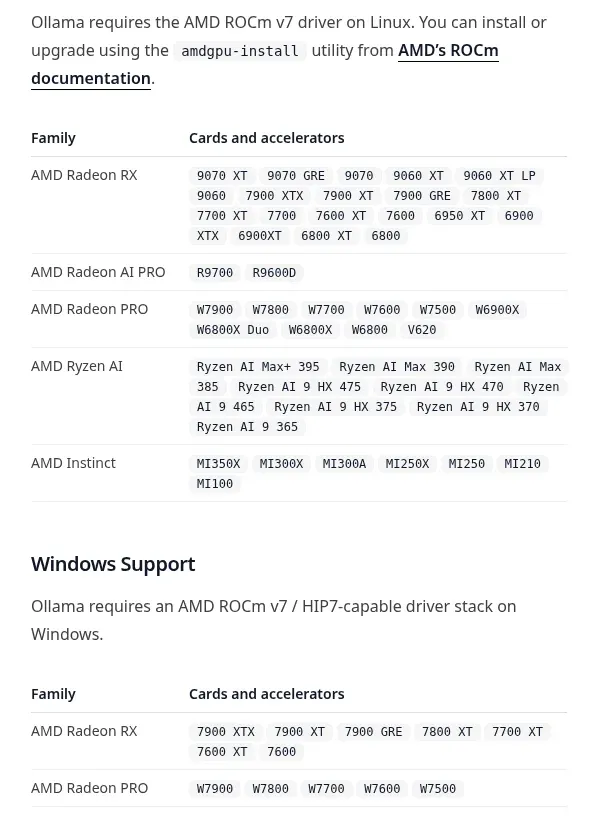
So an RX 9070 XT, RX 9060 XT or RX 6800 on Windows won't use ROCm. That's fine, because Ollama also ships a Vulkan backend, and its docs say Vulkan "is enabled by default" and that most Windows GPU drivers already include Vulkan support. Ollama's Windows notes call Vulkan "the recommended fallback" for RDNA 2 cards like the RX 6800.
If your Radeon still shows 100% CPU:
- Make sure
OLLAMA_VULKANisn't set to0orfalse(Step 4). Some r/ollama users setOLLAMA_VULKAN=1explicitly, and that doesn't hurt. - Update Adrenalin (Step 3), restart, and look for
library=Vulkanin server.log. - On a laptop or desktop that also has AMD or Intel integrated graphics, Ollama's docs suggest setting
GGML_VK_VISIBLE_DEVICESto your discrete card's index if Vulkan picks the unstable integrated one. If the log lists your Radeon asVulkan1, setGGML_VK_VISIBLE_DEVICES=1.
You'll see HSA_OVERRIDE_GFX_VERSION recommended a lot on Reddit. Ollama documents that override for Linux only, so on Windows I'd stick with Vulkan.
On Linux, things are different. ROCm v7 supports the RX 9000, 7000 and high-end 6000 cards there. If discovery hangs and the log shows failed to finish discovery before timeout, Ollama's troubleshooting guide says your AMD kernel driver is too old for its bundled ROCm 7 libraries. Upgrade with AMD's amdgpu-install tool and reboot.
Step 6: Intel Arc and integrated graphics
Intel Arc cards (A-series and B-series, like the B580) have no CUDA or ROCm path in Ollama. They run through Vulkan, so the same rules as Step 5 apply. Keep Vulkan on, update the Intel driver, and check the log for library=Vulkan.
Integrated graphics are a special case. I read through Ollama's GPU discovery code to be sure about this one. It drops integrated GPUs that it finds through Vulkan unless you opt in, and it logs dropping integrated GPU; to enable, set OLLAMA_IGPU_ENABLE=1 when it does. To try your Iris Xe, Intel Arc laptop graphics or a Radeon 780M, add a user environment variable OLLAMA_IGPU_ENABLE with the value 1, then restart Ollama from the tray.
Keep your expectations modest, though. Integrated graphics share your system RAM, so there's no separate pool of fast video memory. Some setups also crash. There's an open bug where Vulkan crashes at model load on a Ryzen 7 4700U's integrated graphics (#19558). If the iGPU makes things worse, just remove the variable again.
One more laptop quirk: an Intel Iris Xe owner found Ollama sometimes saw 0 B of VRAM after the laptop woke from sleep, and it stayed that way until Ollama restarted (#18482). If your GPU works some days and not others, quit and reopen Ollama before you try anything bigger.
Step 7: Repair a broken Ollama install
If Ollama ran on your GPU last week and nothing else changed, look at the update. In one GitHub report, an RTX 5070 Ti owner's Ollama fell back to CPU after an automatic update. The CUDA library ggml-cuda.dll was missing, and in its place sat a full-size temporary file named is-*.tmp. A contributor explained that the installer writes the new file under a temporary name, deletes the old one and then renames it. If something such as antivirus locks the file at the wrong moment, the rename fails.
To check yours, run this in PowerShell:
Get-ChildItem "$env:LOCALAPPDATA\Programs\Ollama\lib\ollama" -Recurse -Filter *.tmp
Get-ChildItem "$env:LOCALAPPDATA\Programs\Ollama\lib\ollama" -Recurse -Filter ggml-cuda.dll
If the first command finds files and the second finds nothing in your CUDA folder, reinstall:
- Quit Ollama from the tray.
- Uninstall it from Settings > Apps > Installed apps.
- Download a fresh installer from ollama.com/download and run it.
Your models live in %HOMEPATH%\.ollama, separate from the program, and the reporter's models survived the reinstall. If you moved them with OLLAMA_MODELS, Ollama's docs say the uninstaller won't touch them. Before you reinstall, it's worth saving upgrade.log from %LOCALAPPDATA%\Ollama. It's the record of the update that went wrong, and a contributor asked for exactly that file in the thread.
Step 8: Fix a CPU/GPU split
A split like 35%/65% CPU/GPU means discovery worked. The model plus its working memory is just bigger than your free VRAM, so Ollama put what fits on the card and the rest in system RAM. Even a small spill hurts, because those layers run at CPU speed and the two halves keep passing data back and forth.
Here's how to get back to 100% GPU:
- Check the context. Ollama picks a default context length based on VRAM: 4K under 24GB, 32K at 24 to 48GB, 256K at 48GB and up. Tools that ask for a much bigger context (coding agents often do) can push a model that fits at 4K over the edge. The CONTEXT column in
ollama psshows what you actually got. - Shrink the KV cache. Ollama's FAQ says
OLLAMA_KV_CACHE_TYPE=q8_0uses about half the memory of the default f16, with very little quality loss. - Free up VRAM. Games, browsers with hardware acceleration and a second loaded model all take memory. Run
ollama stop <model>on anything you aren't using. - Pick a smaller model or quant. My best local LLM for your GPU VRAM guide lists which popular models fit 8, 12, 16 and 24GB cards.
On a PC with several Nvidia cards, Ollama loads a model onto one card if it fits and spreads it across all of them if it doesn't. If the card order keeps changing between restarts, a regular Ollama contributor suggested pinning it with CUDA_VISIBLE_DEVICES set to the GPU UUIDs from nvidia-smi -L.
Running Ollama in WSL2 or Docker
If you run Ollama inside WSL2 rather than the native Windows app, install the Nvidia driver on Windows only. Nvidia's CUDA on WSL guide says the Windows driver "is the only driver you need to install" and warns not to install any Linux display driver inside WSL.
For Docker with an Nvidia card, install the NVIDIA Container Toolkit and start the container with the GPU flag, as Ollama's Docker docs show:
docker run -d --gpus=all -v ollama:/root/.ollama -p 11434:11434 --name ollama ollama/ollamaForget --gpus=all and you get 100% CPU every time. Ollama's troubleshooting page also has a quick sanity check: if docker run --gpus all ubuntu nvidia-smi fails, Ollama won't see the GPU either. On Linux hosts where the GPU works at first and then drops to CPU after a while, Ollama recommends adding "exec-opts": ["native.cgroupdriver=cgroupfs"] to /etc/docker/daemon.json.
Related guides: all my AI tool guides are listed at the bottom of ChatGPT vs Gemini vs Claude free plans. If your PC has no dedicated GPU at all, start with the best Ollama models for 8GB of RAM. And if you'd rather click than type commands, here's how to run DeepSeek and Llama locally with LM Studio.
FAQ
Why does Ollama say 100% CPU when I have a GPU?
Ollama didn't find a GPU it could use when the server started. The usual reasons are an outdated driver, a variable like CUDA_VISIBLE_DEVICES hiding the card, an AMD or Intel GPU with Vulkan turned off, or a broken update. Open server.log in %LOCALAPPDATA%\Ollama to see which one it is.
What Nvidia driver does Ollama need on Windows?
Ollama's Windows docs ask for 551.61 or newer. GTX 900 and GTX 10-series cards (compute capability 5.0 to 6.2) need 570 or newer. Older cards below compute capability 5.0 aren't supported.
Does Ollama work with the RX 9070 XT on Windows?
Yes, through Vulkan rather than ROCm. Ollama's Windows ROCm list only includes RX 7000 cards, but Vulkan is on by default and comes with AMD's normal driver. Just make sure OLLAMA_VULKAN isn't set to 0.
Can Ollama use Intel integrated graphics?
It can try. Ollama skips integrated GPUs found through Vulkan unless you set OLLAMA_IGPU_ENABLE=1 and restart it. Integrated graphics share system RAM, so don't expect the speed of a dedicated card, and remove the setting if it causes crashes.
Will reinstalling Ollama delete my models?
No. Models are stored in the .ollama folder in your user profile, separate from the program files. If you moved them with OLLAMA_MODELS, Ollama's docs say the uninstaller leaves them alone.

Comments ()