1Password Breach: What Was Stolen and What to Do Now
1Password says an attacker took names, emails and account data, not vaults or passwords. How to check your account and avoid the phishing that follows.
1Password says an attacker copied names, email addresses and account metadata for a subset of its customers, but not vaults, passwords or Secret Keys. You don't have to reset anything. The real risk now is phishing, so ignore any "secure your account" email, sign in only through the app or by typing 1password.com yourself, and turn on two-factor authentication if it's off.
Updated 26 November 2026. I checked 1Password's incident post and every support page linked below on 26 November 2026. Menu paths are for 1Password 8 and 1Password.com. I haven't seen any of the stolen data myself; everything here comes from 1Password's own statement and the outlets linked inline.
Jump to:
- What happened
- Who is affected and how to check
- Step 1: Treat 1Password messages as suspect
- Step 2: Check signed-in apps and browsers
- Step 3: Turn on two-factor authentication
- Step 4: Save a fresh Emergency Kit
- Step 5: Change a weak or reused account password
- Step 6: Run Watchtower
- What not to do
- Troubleshooting
- FAQ
What happened
According to 1Password's incident update from 25 November 2026, the company started investigating on 19 November after signs that someone had taken over an employee's corporate GitHub account. The attacker used that account to reach source code and push malicious code to backend services. That code pulled down customer account records.
The records include names, email addresses, account and user IDs, creation and last sign-in times, public keys, Secure Remote Password (SRP) parameters, tokens from some emailed invitation and recovery links, and internal metadata. The attacker also copied private source code and reached 1Password's CI/CD system; the company says it rotated every credential that might have been exposed.
Not touched, per the same post: vaults, the keys that protect them, account recovery keys, and the apps and extensions. 1Password never stores your account password or Secret Key anyway. BleepingComputer and The Verge flagged the obvious problem: a list of confirmed 1Password users is a gift to phishers.
Who is affected and how to check
1Password only says a "subset" of customers and hasn't given a number. As of 26 November I couldn't find a lookup tool or a notice for the main group, so if you have an account, assume your name and email are on that list.
1Password did notify the small group with a provisioning invite (SCIM Bridge or Hosted Provisioning) or account recovery pending at the time. Those tokens also need an SSO sign-in or an emailed code to work, and that code has gone from six digits to ten letters and numbers. If you got that notice, follow it, then do the steps below.
Step 1: Treat every 1Password message as suspect for now
This is the step that matters. 1Password says it will never contact you to ask for your account password or Secret Key, and that you should only type them into the official app or the website after opening it yourself. So:
- Don't click links in emails, texts or DMs about the breach, invitations or account recovery you didn't start.
- If a message looks urgent, close it and open the app directly.
- Hang up on anyone who calls "from 1Password". Nobody legit needs your Secret Key over the phone.
- Report anything suspicious to support@1password.com.
The scam I expect most is a "verify your account after the incident" email with your real name on it and a fake sign-in page.
Step 2: Check which apps and browsers are signed in
1Password found no sign of account takeovers, but this check takes a minute. Per the two-factor authentication support page (checked 26 November 2026):
- Sign in on 1Password.com.
- Select your name in the top right, then Manage Account. Your linked apps and browsers are listed there.
- If you don't recognise one, select the gear next to it and choose Unlink, or Require 2FA on Next Sign-in if you've set up 2FA.
Step 3: Turn on two-factor authentication
With 2FA on, a new device needs a code on top of your password and Secret Key. From the 1Password page:
- On 1Password.com, select your name, then Manage Account.
- Select More Actions > Manage Two-Factor Authentication > Set Up App.
- Write down the 16-character secret next to the QR code and keep it with your Emergency Kit. It's your backup if you lose your phone.
- Scan the QR code with an authenticator app (1Password names Authy, Microsoft Authenticator and Okta Verify), select Next, enter the six-digit code and select Confirm.
Use a separate app, not 1Password itself (1Password compares that to locking the key inside the safe). A hardware security key like a YubiKey also works.
Step 4: Save a fresh Emergency Kit
Your Emergency Kit is the PDF with your sign-in address, email and Secret Key, exactly what phishers want. Know where yours is and keep it offline. From the Emergency Kit support page:
- Sign in on 1Password.com, select your name, then Manage Account.
- Select Save Emergency Kit and follow the prompts.
- Print it, write your account password on the printed copy if you want to, and store it somewhere safe.
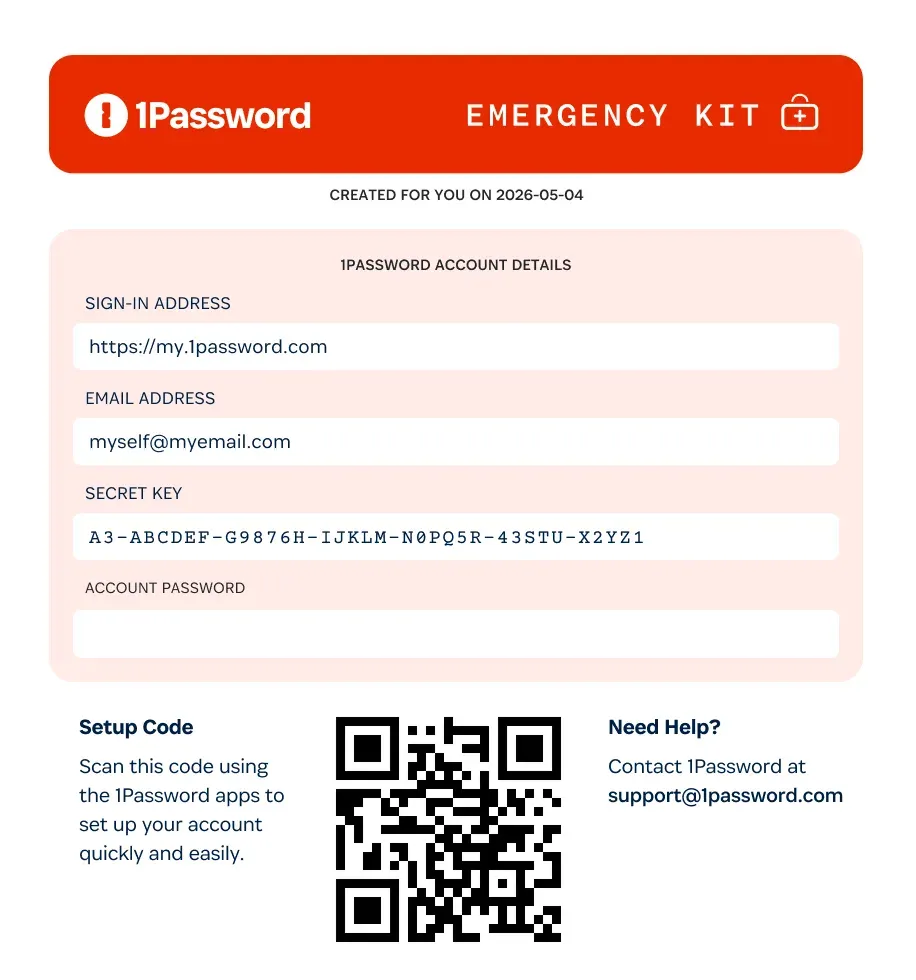
If your Secret Key isn't handy, the app has it: open 1Password 8, select your account at the top of the sidebar, then Manage Accounts > Your Details (Secret Key page).
Step 5: Change your account password only if it is weak or reused
1Password says you don't need to change anything. But if your account password is short or you've used it anywhere else, fix it today. Per 1Password's guide:
- Sign in on 1Password.com, select your name, then Manage Account.
- Select Change Password.
- Save a new Emergency Kit afterwards (Step 4) and update your printed copy.
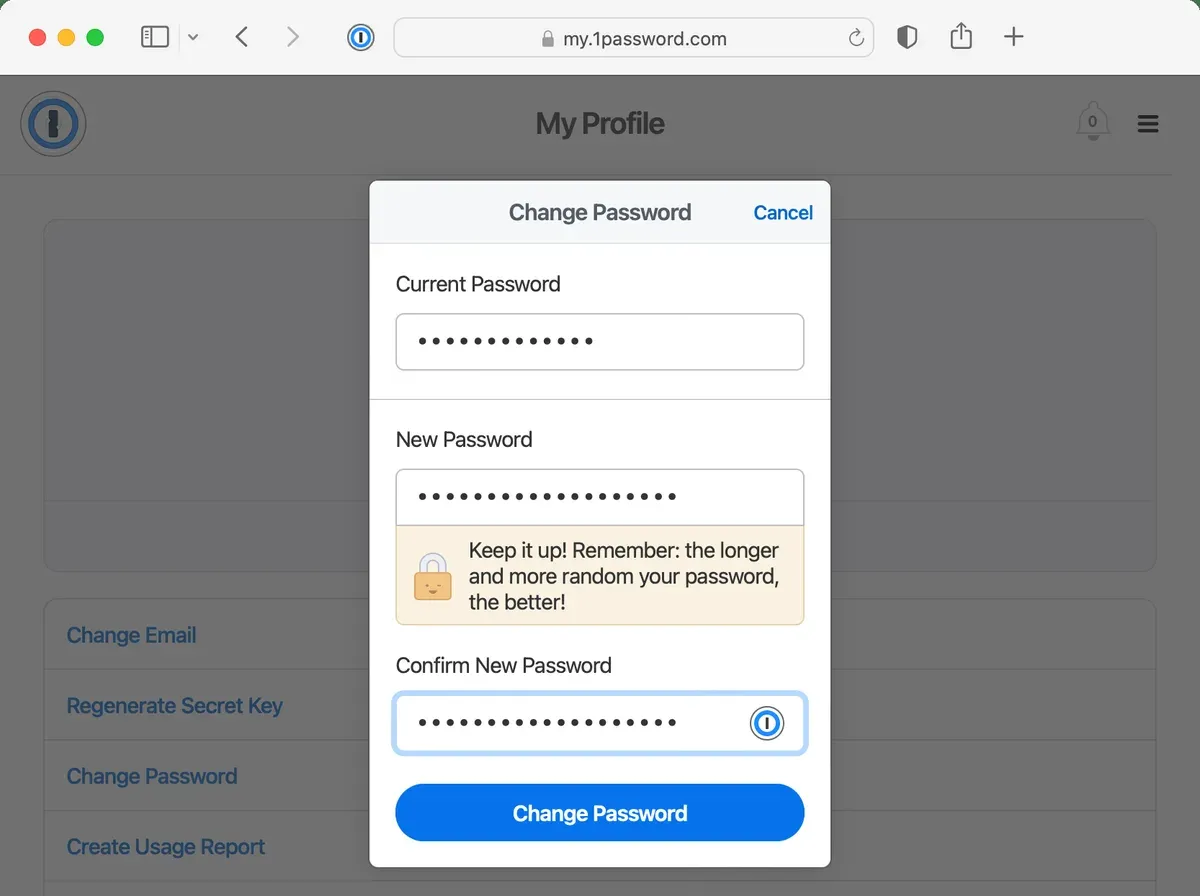
The same page shows Manage Account > Regenerate Secret Key. That's optional too. Nothing in the incident post says your Secret Key leaked, so I'd leave it alone unless you think yours was exposed some other way.
Step 6: Run Watchtower while you are in there
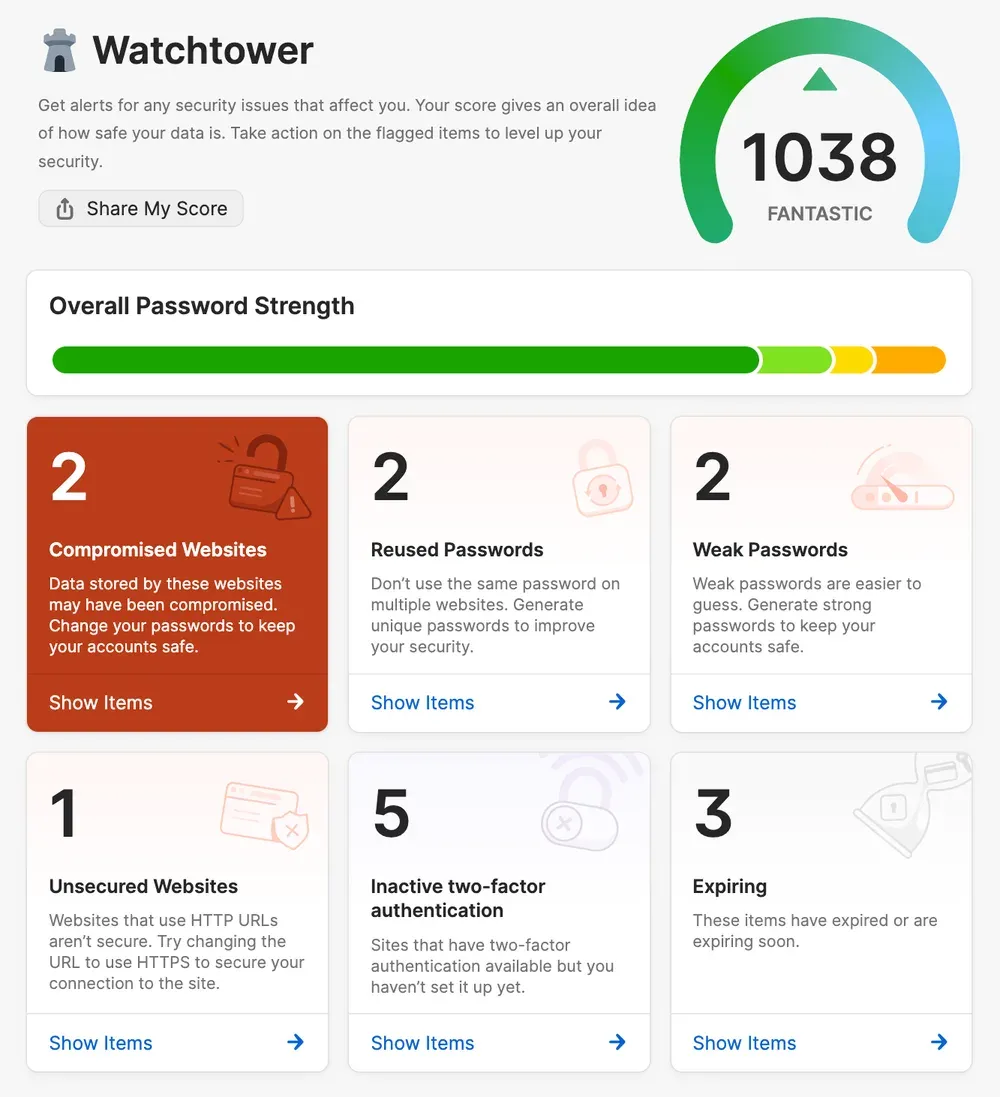
Watchtower won't tell you whether your record was in this breach; it checks the items in your vault. But weak and reused passwords make any later phishing win worse. In the app, select Watchtower in the sidebar and work through what it flags (Watchtower support page, checked 26 November 2026).
What not to do
- Don't reset every password in your vault. Vault contents weren't accessed, so that burns an afternoon and fixes nothing.
- Don't panic-export your vault to a spreadsheet. A plain CSV on your desktop is far riskier than an encrypted vault the attacker never reached.
- Don't "verify" anything through a link. Whatever the email says, the official advice is to open the app or type the address yourself.
- Don't keep your 1Password 2FA codes inside 1Password. If you lose access, you lose both.
Troubleshooting
I got an invitation or recovery email I didn't ask for. Don't open the link; report it to support@1password.com. The token can't get in without SSO or the emailed code.
Save Emergency Kit is missing. If you're on a 1Password Business account, your admin may have turned Emergency Kits off. You also can't save one if you unlock with SSO.
I lost my authenticator app after turning on 2FA. On a device that's still signed in, open 1Password, go to Manage Accounts, choose the account, then the ellipsis > Turn off two-factor authentication. Or use the 16-character secret you wrote down.
I still use 1Password 7. It's being retired in early 2027, per 1Password. On 1Password 7 for Windows, finish a password change by selecting the red authentication error banner in the app. Honestly, just move to 1Password 8.
Who this is for and when to skip it
This is for anyone with a 1Password account, personal, family or work. If your company manages 1Password through SSO, Steps 2 to 5 may be locked by your admin, so just do Step 1 and ask IT. If you already use 2FA, a unique account password and a printed Emergency Kit, Step 1 is all you need.
Related guides: my security checker hub walks through checking a PC for malware step by step. For spotting post-breach scams, see the Chase, Visa and Mastercard vendor leak guide, and the 2 billion stolen logins guide shows why reusing passwords is the bigger risk. Developers: rotating API keys after the Railway breach.
FAQ
Were my 1Password passwords stolen?
No, according to 1Password. The attacker got account records, not vault contents, and 1Password doesn't store your account password or Secret Key.
Do I need to change my 1Password account password?
1Password says no. Change it only if it's weak or used anywhere else, then save a new Emergency Kit.
Can the stolen invitation or recovery tokens get into my account?
Not alone. They need an SSO sign-in or a code sent to your registered email, and 1Password has lengthened that code to ten letters and numbers. It also says it found no evidence of takeovers using those tokens.
How many 1Password users were affected?
1Password hasn't said. It describes the group only as a subset of customers.
Was the 1Password app or browser extension compromised?
1Password lists both as not affected. The stolen source code, it says, contains no customer secrets.
Should I switch to another password manager?
That's your call. In my view the bigger danger this week is a rushed switch or a fake sign-in page, not your encrypted vault. If you do move, export straight into the new manager and delete the export file right away.
Comments ()