Xbox Cloud Lets Your Phone Act as the Controller
Xbox Cloud Gaming preview: use Android/iPhone as a smart-TV controller in the browser; US Nano gets Wi-Fi cloud connect.
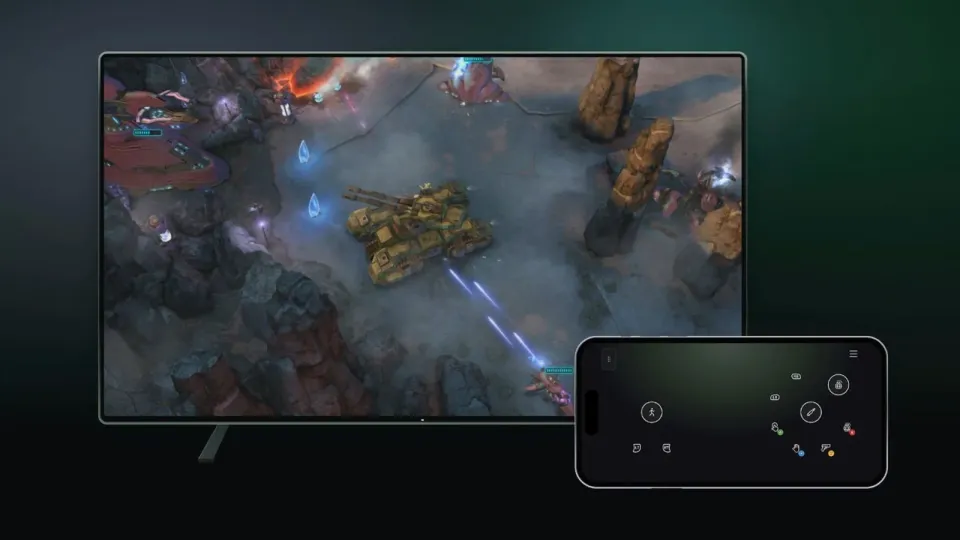
No Xbox pad on the couch? Microsoft is previewing a fix for Xbox Cloud Gaming on supported smart TVs: turn your Android or iPhone into the controller, in the phone’s browser, with no separate controller app required. A second US-only preview lets the new Xbox Nano Controller talk to the cloud session over Wi‑Fi instead of Bluetooth.
What happened
On November 4, Xbox Wire opened two Cloud Gaming input previews. The headline option: on a supported smart TV, enable Preview Features under Settings → Account, launch a cloud game without a physical pad connected, then use your phone for that session. Controls open in the mobile browser after you connect (Android Authority notes a QR code flow); some titles get layouts tailored to how they play. The rollout covers countries where Xbox Cloud Gaming already works, on supported TV models only.
The companion preview is cloud connect for the Xbox Nano Controller in the United States. Instead of Bluetooth to the TV, the pad joins Wi‑Fi and links straight to the cloud server running the game — Microsoft’s pitch for lower input latency. Setup uses the Xbox beta app on Android/iOS or the Xbox Accessories app on PC (PC path needs Xbox Insider). Cloud connect currently targets supported smart TVs and the web, and it will not cover every cloud experience while it is still early. Android Authority and Gadgets 360 walked through both; @verge flagged the previews on X.
Both features are explicitly in preview. Xbox says availability, games, and devices may be limited while it collects feedback. The Nano itself lists at $49.99 (about ₹4,750 at ~₹95/$); India pricing and cloud-connect access are not part of this US preview.
Why it matters
Cloud Gaming on a TV used to assume you already owned a compatible controller. Phone-as-pad removes that hardware gate for casual sessions — hotel rooms, a friend’s TV, or the living room when the pad is buried under cushions. Browser-based controls also skip another store install, which is friendlier on locked-down phones.
Cloud connect is the enthusiast half of the story. Streaming already fights round-trip latency; cutting the Bluetooth hop between pad and TV is a sensible experiment if you already bought the Nano. It does not magically fix a bad ISP path — for that you still want the same hygiene we cover in how to cut high ping and lag — but it is the first Microsoft-branded Wi‑Fi path aimed specifically at cloud sessions.
What to do
- Phone controller: Update the Xbox app on a supported smart TV → Settings → Account → turn on Preview Features → start a cloud game with no pad paired → choose the phone option and follow the on-screen connect steps.
- Check your TV. “Samsung/LG/Amazon” branding is not enough; use Xbox’s supported-model list. Unsupported sets will not show the option.
- US Nano owners: Set up cloud connect in the Xbox beta (mobile) or Accessories (PC + Insider) app, join Wi‑Fi, then sign into the same Xbox account on a supported TV or web session.
- Send feedback from the phone (Xbox icon → Give Feedback) or the TV Guide if something is broken — that is the point of the preview.
- Skip random “Xbox cloud controller APK” sideloads. Official flow is browser-based for the phone pad.
My take
This is the most practical Cloud Gaming change Microsoft has shipped in months, even if it is still preview-tagged. For Indian Game Pass / cloud players on fibre with a mid-range Android phone, the phone-as-controller path is the one that matters first — Nano cloud connect is US-gated and a $50 pad is optional. I would treat touch controls as fine for indie and turn-based games, and keep a real pad for shooters until the layouts prove themselves.
Try it once on a quiet evening: enable the preview, stream a short session, and note input delay with your phone on the same 5 GHz Wi‑Fi as the TV. If the TV app never offers the toggle, you are waiting on model support, not doing anything wrong. Pair that with a sane network setup from the ping guide above and you will know quickly whether couch cloud play without a pad is actually fun — or still a novelty.
Comments ()